Tuesday, April 28, 2015

Week 15a - Print ready design - Business Cards


John Smith
Marketing Manager
web: www.psdgraphics.com
phone:123-456-7890
mail: email@psdgraphics.com


Morgan Selbert 
619-980-7719
morgan@morganselbertdesigns.com

Jason Mostek 
Personal Banker 
Telephone: 303-244-5777
jason.a.mostek@chase.com
Carl Davison 
Finance Manager
telephone: 235-555-1784
cdavis@financedirect.com
Steven Jobs
Vice President 
Telephone :408-996-1010
Mr.T Riley 
Lawyer
mr.riley@yoururl.com
John Doe 
Graphic Designer
Telephone: 84.94.789.1104
johndoe.designer@domain.com

Jonathan Smith 
Exclusive Manager 
Telephone: 123-456-9870
contact@brandname.com


Jane Smith 
Interior Decorator
Telephone: 123-456-7890
john.smith@email.com


Image result for business cards for ucla
Dylan Matteson
Manager
telephone: 909.336.7045
dmatteson@ha.ucla.edu


Tuesday, February 17, 2015

Crenshaw school policies


a. -Uniform school dress code
 b. -Be seated in class before the late bell
 c. -Keep cellphones & devices put away

Describe the sign in brief. (What is the picture a symbol of?)
What does the image mean?(What does the sign intend for the viewer to do when he/she sees it?)
Where is usually found?


Monday, February 2, 2015

Week 4a Monday - Pen Tool Practice

The easiest way to improve your skills as an artist is to practice drawing; especially drawing what you see.  So we'll start this week with more practice drawing shapes using the Pen Tool in Adobe Illustrator CS6.

Copy both Pen Tool cheat-sheets onto your portfolio blog for future reference,
then attempt to do what each chart is showing.
SOURCE:  http://www.ict.sislerhightechnology.com/wp-content/uploads/2013/02/pen-tool.jpg
Additional instruction to show how the Pen tool works. Practice the steps shown.
SOURCE: http://www.deep4d.com/pages_tuts/illustrator/bezier-practice50.jpg


Since you'll be taking screenshots of your work to post onto your blog, the shortcut keys to take screenshots on your computers are as follows:

COMMAND-SHIFT-3  <<To screen capture the entire screen
COMMAND-SHIFT-4-Click and drag a box <<To screen capture a selected portion of the screen.

(TASK 1) DRAWING # 1 - Practice drawing the following shapes in Adobe Illustrator CS6.
Email your Adobe Illustrator file to teacher.jwebb@gmail.com and post a screenshot to your blog for credit.


At Step 3 hold the Option key while moving the pen tool...then continue as shown.
SOURCE - http://codeidol.com/img/illustrator-cs/54084xfg0711_0.jpg
SOURCE - http://wiki.scribus.net/wiki/images/a/a4/Bezier_curve_exercises.png


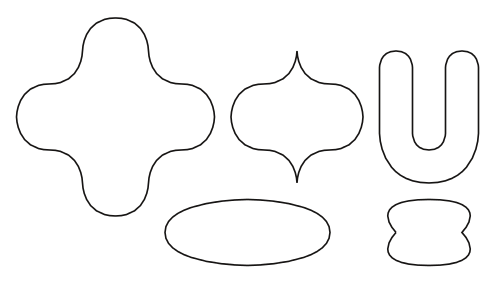
(TASK 2) DRAWING # 2 - Copy and paste the image below onto a new Letter-sized document in Adobe Illustrator.  Then attempt to draw any six shapes from the document using the Pen Tool (P).

Flourishes in Adobe Illustrator.  SOURCE:  https://d39l2hkdp2esp1.cloudfront.net/img/eps/E0327/c/E0327_02.jpg?20141104142069
Take a SCREENSHOT (Command-Shift 3) of your finished drawing practice within Illustrator so that the anchor points and program windows are visible.  Post that screenshot onto your blog with a caption explaining which shapes you drew and how you managed to draw using the pen tool.

Email your Adobe Illustrator file to teacher.jwebb@gmail.com and post a screenshot to your blog for credit

(TASK 3 - Extra Credit 20pts requires you first complete Tasks 1 and 2) 
Watch this video, and follow along with the steps and techniques shown.  Take a SCREENSHOT of your finished drawing....but hide the layer that you trace.

Download the exercise files to follow along with the video:
3rdelement.com/online_training/illustrator-tutorials/pen-tool/pentool_exercise_files.zip


Illustrator Tutorial: Practicing with Pen tool, #1 from Elias Sarantopoulos on Vimeo.


~~~~~~~~~~~~~~~~~~~~~~~~~~~~~~~~~~~~~~~~~~~~~~~~~~~~~~~~~~~~~~~~


ADDITIONAL RESOURCES:
Play the Bezier Curve game (if it's not blocked by our filters).  It will help you get used to controlling the Pen Tool.
Link to the game:  http://bezier.method.ac/

You can get additional practice by following along with this video.  But, DO THIS PRACTICE OUTSIDE OF MONDAY'S CLASS.... Perhaps even during lunch on Wednesday, Thursday, and Friday this week.


Bezier Basics: Introduction to Pen Paths in Adobe Ilustrator from William Card onVimeo.

INSPIRATION...
Persistence.
SOURCE - http://www.donrelyea.com/hilbert_mod/1200_pixels_wide/hilbert_big_Aqua01.jpg

Meticulous attention to detail.
SOURCE - http://www.donrelyea.com/hilbert_mod/helipad_proto_big.gif
~~~~~~~~~~~~~~~~~~~~~~~~~~~~~~~~~~~~~~~~~~~~~~~~~~~~~~~~~~~~~~~
Period 6 TASK - To replicate the following photo as a MAYA scene


Tuesday, January 27, 2015

Tuesday, January 27, 2015

Illustrator practice


http://codeclasshosting.blogspot.com/

http://codeclasshosting.blogspot.com/

Illustrator notes

(I) Watch Mr. Webb's demonstration and post notes to do the following on your blog:
- Creating a new canvas (document)
     press Command+N to make a new canvas
     3 sections of Adobe Illustrator (Toolbox [left], Menu bar [at the top], Panels [right])
     PROFILE: Print, SIZE: Letter, ORIENTATION: Portait

- Interface navigation, drawing tools (Illustrator's shapes & using the Pen Tool)
    Rectangle Tool (M) - makes squares and rectangles with sharp edges
    Rounded rectangle tool - makes rectangles with rounded edges
    Ellipse tool - draw circles and ovals
    Polygon Tool - draws convex regular polygons.
    Star tool - draws stars; to add more edges tap the up arrow, to remove edges tap the down arrow; to     control the sharpness of the star, hold the command key while drawing the star.

   Selection Tool (V)- looks like a black arrow.  Use to select objects that you want to move, copy or     delete.

    Pen Tool (P) - draws line segments and curves

- Setting the Fill Color, and the Stroke Color
First, select your object or line.  
Second, click on the fill color box to set the fill color. 
OR, click on the stroke color box to set the stroke color

- Saving file formats (saving for Adobe Illustrator editing vs. Saving an image for the web)
Save for Adobe Illustrator = (.ai) <<Can ONLY be opened in Illustrator.
Save for the Internet/Your blog = (.jpeg, .gif, .png) << Can be uploaded to your blog.


Monday, January 26, 2015

3A part 2

Monochromatic colors are all the colors (tints, tones, and shades) of a single hue.

Negative space, in art, is the space around and between the subject(s) of an image.


ADOBE ILLUSTRATOR NOTES

Wk 3a - Introduction to Adobe Illustrator
(I) Watch Mr. Webb's demonstration and post notes to do the following on your blog:
- Creating a new canvas (document)
(Press Command+N to make a new document)
Size= LETTER, Orientation=Portrait

Go to Window>Workspace>Reset Essentials
To reset Adobe Illustrator when you first open the app.

- Interface navigation, drawing tools (Illustrator's shapes & using the Pen Tool)
RECTANGLE (M)
Click and drag the rectangle on your document
ELLIPSE (L)
ROUNDED RECTANGLE
POLYGON TOOL
STAR TOOL
FLARE TOOL

PEN TOOL (P)
The Pen tool allows you to create lines and curves.
- Setting the Fill Color, and the Stroke Color
- Saving file formats (saving for Adobe Illustrator editing vs. Saving an image for the web)

Wednesday, January 14, 2015

alphabet- a collection of symbols used to form the most basic parts of speech

Tuesday, October 14, 2014

Research and writing Maya 2014

1.) Attaching paint effects to curves
http://www.lynda.com/Maya-tutorials/Attaching-paint-effects-curves/137899/148408-4.html


2.)

3.)